Category: TeamKinetic Features Page 6 of 10

There are a wide array of TeamKinetic features, that’s why we try to explain what each area of the system does, why you use it, and how to use it most effectively.

If there’s something we haven’t covered, let us know!

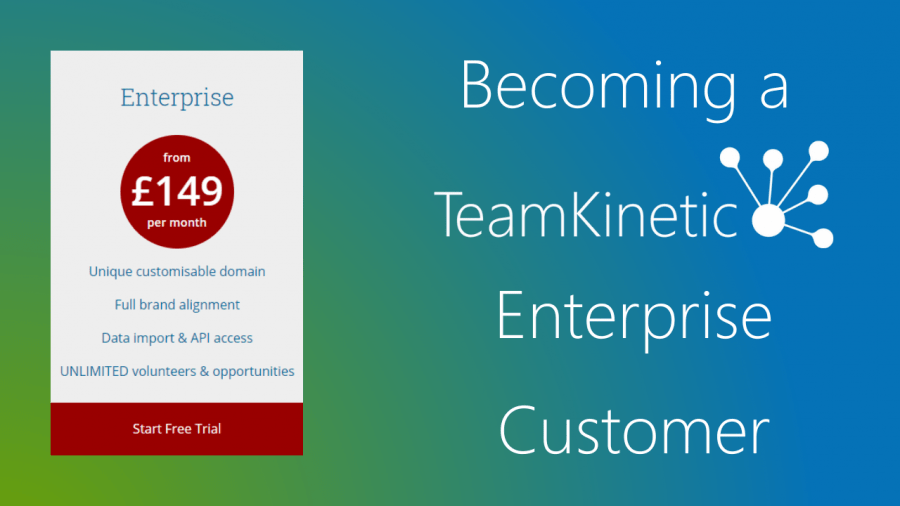
Becoming a TeamKinetic Enterprise Customer

Welcome to the family!  Its great that you are about to join hundreds of other organisations that use TeamKinetic to manage their volunteers.  We have put together this short blog that tells you what happens next and how to get ready to launch your site.

Once we have your contract signed we can have you up and running in no time, this blog outlines the steps to get your site ready and the pit falls to avoid.

Trial Site

If you already have a trial site up and running, you can get started playing around and getting to know the TeamKinetic service right away.  We have a simple to follow “Getting Started” lesson program for you to follow.  Just click here and follow the 10 quick and easy lessons.  If you get stuck just drop us a support ticket or a chat message direct from your help menu.

If you don’t have a trial or demo site set up yet, just let your TeamKinetic contact know and they will have that sorted out for you in no time.  This will help you get acclimatised to the product and give you a good idea of how you might like to use the service.

We’d love your feedback on our Getting Started lessons, so if there is something we can do to make it easier for you please let us know.

Getting set up on our implementation management system.

To help make your implementation go super smooth we use a service that ensures you know what you have to do and what we have to do.  This system provides you with detailed information on how you undertake each task and lets you record what you have done, when you are ready to pass things back to us and if yo have any questions you can ask them really easily.

As soon as the contract is signed we will invite the key members of your project team to join us on the task list and you can get going right away with your tasks, getting your site ready to go live.

Choosing A URL

As an enterprise customer, you get to choose where your TeamKinetic powered website will live or what URL you want to use.  There are a few options available to you.  It has a tendancy to get a little technical here so my apologies in advance.  The options are:

  1. You can set up your TeamKinetic powered site as a “Sub-Domain” of your existing website.  That means you can have something like https://volunteer.YourOrgNamehere.org
  2. You can have a new domain that no one else has yet.  To choose a new domain use a service such as NameCheap.com and see what’s available.  

What ever you choose, your TeamKinetic implementation advisor will help you with the technical aspects of getting your trail site moved onto your new URL.  You wont lose anything you have done up to this point if you don’t want to, or we can always delete the data and let you start again, its completely up to you.

Setting up the ‘Look and Feel’ of your TeamKinetic site

You can start this process as soon as you have your trail or demo site set up, it is actually part of the 10 steps mentioned above in the ‘trial site’ section of this blog. 

All settings and changes to the look and feel of your site will be copied over when your site is moved to its final website address.

To make changes to the look and feel of your site, first click on the cog in the top right of your screen which will display the super admin menu.  

(NB. If you can’t see it, you may not be a Super Admin, don’t worry drop us a quick message and we will get you sorted!)

This menu is where you find all the settings for your site and its where you go if you want to change the colours, fonts, messages and images on your site.   

From here you can change all aspects of the site as you require.  Some of the more advanced options can require a little technical ability, but we are here to support you through the process.  There is lots of detailed help to support you and we are always at the end of the phone or available on live chat if you get stuck.  

You can read the help documents for customising your website at the top right of the screen as shown below.

All this is covered in your training and implementation support but if you want to get started there is nothing stopping you.

Getting your site working the way you want it!

TeamKinetic offers so many options and choices to make sure you can manage your volunteers in the way that works for you and them.  Many of these options you only really need to think about once.  

Again, in the Super Admin menu you have choices that cover Profile, Set Up and Options.  If you want to start to have a play around with these then feel free. 

We have this (really long, sorry!) video that walks you through each option and what impact they might have on how you choose to use TeamKinetic.  Break it into manageable chunks and start to make your way through the menus until you have the setting you think will work for you.  Again, we will go through all this with you in your training, but there is nothing to stop you having a play around as you get to know what TeamKinetic can do.

The default settings are fine for a lot of our customers so don’t worry too much about investigating them all straight away.

Training

As soon as your contract is signed we will be looking to get your training booked.  This is normally delivered online over two half day sessions, though there is lots of flexibility and all this can be adjusted to meet your needs. 

We want you to get the most out of these sessions, so if you have followed the instruction in this blog and had a play around you will come to that first session with lots of questions that we can help you with. 

If you are a little nervous, please don’t worry.  No matter what your technical ability we will have you up and running in no time. 

Go Live!

Once you have got your site set up as you want, and you have started the process of adding your opportunities to the site, you are almost ready to tell the world about your new system.

Our implementation team will work with you on a plan to make all this happen and will provide advice on how to link up your TeamKinetic powered portal with your existing web site.

We are often asked how long this takes, and its a tricky one to answer, as it really depends upon how quickly you are able to get through the set up tasks and how many providers and opportunities you need to add.  We have had customers up and running in less than a week and others who have taken 3 or 4 months.  The key consideration is that you are comfortable with the system and how it works and that it has lot of interesting opportunities for your volunteers to look at.  

Remember, we are with you every step of the way, its really difficult to break TeamKinetic so don’t be worried or sacred about having a play around and good luck on your first step in taking your volunteer management to the next level. We look forward to working with you.

Before we go

Keep up to date with everything TeamKinetic by following us on the following social media channels where you will find useful content, support and access to offers and discounts you will not want to miss.

YouTube for great interviews and how to videos.

https://www.youtube.com/TeamKinetic

LinkedIn to read our latest blogs and thoughts (TeamKinetic) https://www.linkedin.com/company/15082852/admin/

Twitter for the inspirational quotes and funnies (@TeamKineticUK) https://twitter.com/TeamKineticUK

Facebook to talk with our other volunteer managers and to join our master class sessions. (TeamKinetic) https://www.facebook.com/TeamKineticUK/

We want you to help us grow this community.

See you all soon

Chris and the Team

3 Reasons Why You Don’t Use SMS Text Messages

If you are reading this, you might not be using SMS text messages to manage your volunteers. And you will have your reasons as to why you feel that SMS text messages would not benefit you, your organisation, or your volunteers. This is where we come in. We’re here to debunk some of the common reasons why organisations think they don’t need text messages to manage their volunteers.

1) You don’t know how to use them

If you have never bought them before, then of course you’re not going to know how to use them. But, it is very easy to pick up. In fact, we have created a video that shows you exactly how to turn text messages on, how to set up automatic messages, how to send texts to specific volunteers, and how to send texts to the volunteers on a specific opportunity. Sending text messages to volunteers has never been so easy!

2) You don’t know the Impact

So, you think your organisation doesn’t need SMS text messages. But, do you know about the impact?

It will make you wonder why you didn’t use them earlier. Here are just a few ways it can ompact your volunteers:

  • You can automatically alert your volunteers by text when they have a session coming up, if their criminal check is due for renewal, or even when one of the providers they follow adds a new opportunity. Not only does this help engagement and encourage volunteers to attend sessions, it also makes your life a lot easier. 
  • Our SMS text messages function has been proved to be a more effective way to reach people and ensure they read your message over email. No longer will you have to worry about people not receiving your email because it either got lost in their inbox, they rarely check their emails, or it just went to spam; sending texts gives a higher chance of volunteers seeing your message.
  • You can easily text groups of volunteers, individual volunteers, or all volunteers on a particular opportunity, and give them the information they need. Alternatively, if you enter a valid mobile number as the reply-to number, volunteers will be able to text you back and continue the conversation. Or you can provide a short name that will let volunteers know where the message has come from, but they will not be able to reply directly. This makes communication a lot easier for both the volunteer and the volunteer manager.

Let’s look at some scenarios for example:

3) It costs too much money

You may worry that using text messages is just another ongoing expense for your organisation, and it is, but, it’s all the brilliant benefits, like the ones mentioned above, that makes it worth the expense.

We also have an offer available for a short time, which may help your organisation if one of your reasons for not buying SMS messages is money. Currently, for every 2 messages you buy, we give you one for free. So when you buy 500 texts, you get 750 and when you buy 1000 texts, you get 1,500. Meaning, the more you buy the more money you save! Perfect for communicating with volunteers, both when in a lockdown and when out of a lockdown. 

So, should I use them?

After reading all through the reasons why you thought you didn’t need SMS text messages, you might be thinking there could be benefits after all. So why not check out our SMS text offer? After all, it is saving you money in the long term. Take a look at our video below which explains how to do this:

Should I Be Using SMS Text Messages?

Yes, yes and yes. That is the first thing you see when you Google ‘Should I be using SMS text messages when managing volunteers?’. And the research isn’t wrong, using texts as a form of communication to your volunteers is incredibly beneficial. Not only does it improve communication, but it can also increase engagement and volunteer return rates. And let’s not forget the speedy responses that come from sending text messages, perfect for those time-sensitive situations.
However, the one thing you don’t really see when you Google this question is how beneficial SMS texts are from someone who is currently using them.

This is where we come in. If you are considering using SMS text messages but are still a bit unsure, hear from Claire at Halton and St Helens Volunteer Centre about her personal experiences using them.

Halton and St Helen’s Volunteer Centre

First, a little bit of background. Halton and St Helens is an organisation that provides advice, information and development support to voluntary, community, non-for-profit, faith organisations and volunteers in the Boroughs of St Helens and Halton. Here, Claire spoke to us about her experiences using SMS text messages in her TeamKinetic system.

1) When did you start using the SMS text message feature?

So, we started to use the text message feature fairly early on into the first lockdown of the pandemic. It was also around the same time that we first launched our TeamKinetic portal. 

In addition to this, it was around March/April that we had quite a substantial funding grant come through, which allowed us to buy a great big text bundle. And I already knew of the texts and how they worked from the work we have done with TeamKinetic before.

2) How do you use your text messages?

Initially, we used text messages for our volunteers who were supporting local residents during the pandemic with the community tasks. We would use the function to send a text to show they are a verified volunteer for us, this was pre the ID cards. It was a quick and easy way for us to give them something that was mobile that they could show the person they were working for that they were a verified volunteer. 

When the ID cards came into play on the community task dashboard, we started to use the texts to message our ‘Street Champions’ about ongoing tasks that hadn’t been picked up that needed to be done. I’d say that is the main way we used them now.

3) Do you find the SMS text messaging feature helpful in communicating to and engaging volunteers?

Yes, definitely. Between that and emails, we can have more of an impact in terms of communicating straight away with volunteers. And it’s that instant impact that is important for us particularly when there is an urgency in terms of volunteer support.

Recently we have also used them with our vaccination volunteers. For example,  when volunteers have dropped shifts and we have then asked other volunteers to quickly log in and see if they can pick up a shift. So, that’s been really helpful as we’ve now had full commitment and maximum volunteers throughout our vaccination programme which is great.

4) How have you benefited from the SMS text message feature compared to a time when you didn’t use them?

For me, it’s just an added bonus in terms of being able to communicate quite directly with that we’re not always in connection with and we don’t see physically. It wouldn’t even matter that much when we’re back into the ‘new normal’ after COVID-19 and we do see people on a regular basis. This is because the text messages would still be a massive benefit in terms of that quick turn around and communication with volunteer around shift patterns etc.

For example, we have worked with the TeamKinetic portal for years at Warrington Hospital, and we have never used the text message feature with them. This is mainly because we have never had the funding to be able to do that. But, again with some added funds, we have been able to out a little bit of a bundle on there too. So, we have now used it for when we have needed to contact our away finders, when there’s been an urgent need for people to support the vaccination centre, or when we’ve needed a quick turnaround on support. I think we could probably do that again going forwards, even when we start to bring our volunteers back, it will be a great tool.

We also use them differently in the Hospital in terms of the communication that we do in Halton and St Helens through the Volunteer Centre. So, with the Hospital it’s linked directly to a phone number which helps that two-way communication. With the Volunteer Centre, we actually just link it to a name so they understand it’s just from us and there’s no response from that.

5) What would you say to another organisation that is considering using the SMS text message feature but is still unsure?

For me, it’s a great way of quickly communicating and getting action from volunteers very quickly too. Particularly if you have got an event on for example or you are providing urgent response support;  it’s a great way of supporting that quick action of volunteers to get engaged, get involved, and get moving.

Thinking About Buying SMS Texts

If after reading this, you realise SMS texts would benefit your organisation and your volunteers, then check out this video explaining how to take up the offer!

Training Module: Using TeamKinetic to Manage Your Volunteer Programme

An exciting in-depth look at how to use TeamKinetic on a day-to-day basis to run your volunteer programme.  Partly hands-on, your tutor will talk you through setting up opportunities and allow you to see the system from different users perspectives. At the end of this training session, you will have a good understanding of how each user interacts with the system and how to communicate and manage your volunteers and service providers.

Who Should Attend?

Either new employees who have taken over the role of administrator OR existing administrators who would like a refresher of all the main functionality.

What Does It Cover?

A practical session where attendees will experience the system from each users perspective covering the following:

  • Registering as a provider
  • [As a provider/admin] Creating an opportunity
  • Registering as a volunteer
  • [As a volunteer] Joining the opportunity
  • [As a provider/admin] Managing and communicating with volunteers on the opportunity
  • Searching for volunteer/s
  • Search filters explained
  • Sending volunteers an email/sms text
  • Volunteer/Provider bulk emails
  • Adding volunteers without an email address
  • Inviting volunteers onto the system
  • Achievement badges
  • Criminal checks
  • Volunteer groups
  • Meetings
  • References
  • HourTrades
  • Events
  • Standardising activity tags
  • Accreditation badges
  • Shared opportunities
  • Adding Courses
  • Reporting library explained
  • Exporting information
  • Notifications
  • Volunteer news
  • System support

How Do I Sign Up?

You can access this training from your HELP > EXTRA TRAINING menu. Purchase the number of credits you need and then click on the BOOK button and select your dates.

You can check the latest training dates from within your system. Just go to ‘Help & Support’ → ‘Extra Training’

Training Module: Setup and Configuration

TeamKinetic is a powerful volunteer management tool with a huge amount of functionality to suit every type of organisation. The key to maximising its impact on your volunteer programme is the configuration options. This training session covers a basic introduction to the different types of users and how to set up your TeamKinetic system to work specifically with your organisation. Do you want external organisations to be inducted before they can create opportunities? Do you want external organisations to be able to register at all? All these types of settings will be explained in detail during this extensive configuration training session.

Who Should Attend?

Either new administrators OR existing administrators who would like a full refresher on the configuration options available within TeamKinetic.

What does it cover?

Introduction

  • Key benefits
  • User types explained

First Steps

  • Organisation profile page
  • Changing the About Us page and T&Cs
  • Linking to social media accounts
  • Customising the look and feel of your site
  • Customising registration & volunteer profile fields
  • Configuring opportunities
  • Setting up electronic reference Forms

Users and Administrators

  • Configuring user access to your system
  • About trusted providers
  • Creating admin accounts

Communication and Information

  • Auto SMS & email communications
  • Customising emails
  • Document hub (Adding files for access by other users)

Reporting and Data

  • Setting up custom geographical areas for reporting
  • APIs and Widgets
  • Customising achievement badges & award badges

Other general settings

All the other settings that are available and what they mean for your organisation and programme.

Questions and Workshops

Any questions will be answered and workshopped in the final segment, helping you to apply what you have learnt to your own unique programme.

How do I sign up?

You can access this training from your HELP > EXTRA TRAINING menu. Purchase the number of credits you need and then click on the BOOK button and select your dates.

You can check the latest training dates from within your system. Just go to ‘Help & Support’ → ‘Extra Training’

4 Ways TeamKinetic Can Help YOU Incentivise Volunteers

Retaining and recruiting volunteers can be a difficult task. With volunteering in high demand incentivising your volunteers may be the way forward to ensure retainment. Now, you may ask… “Incentivising volunteers! How can I do that?” Keep reading, TeamKinetic may just have the answer you are looking for…

1. Logging Hours/Leaving Feedback

Your volunteers give up their own time to help your organisation. So giving them some feedback even after they have volunteered will show how much you value them and will mean more to them than you may think! 

TeamKinetic allows you to leave feedback when logging a volunteer’s hours. If you forget or don’t have time to personally thank your volunteer at the end of their session, this section gives you the chance to do so. It also let’s the volunteer log their own hours and leave feedback about the opportunity they joined. As someone who has volunteered in the past, receiving feedback from anyone at the organisation is such a great feeling and has pushed me to come and volunteer again. This could be your volunteers.

2. Achievement Badges

This incentive is a great way to push your volunteers to log more hours. Once a volunteer logs their hours, they will add together to create their total volunteer hours. A small way to help increase volunteer hours is to have achievement badges when they reach certain hour milestones.

TeamKinetic has achievement badges automatically on their system. So, for example, if volunteers were to reach 10 hours combined they would get the badge ‘Super Member’, at 50 hours  they could get the badge ‘Dedicated’ and so on. 

The achievement badge’s pictures and names can be customised by yourself. These badges are a great way to incentivise volunteers and get them to keep on volunteering so they can reach the next milestone.

3. Hour Trades

Wouldn’t it be great for volunteers to trade all of their logged hours for real life items!

Well, TeamKinetic has just the thing. Hour Trades. Your volunteers can use their logged hours to trade them in for things such as vouchers, T-shirts, hats, entry to museum/art galleries, sporting activities… Whatever items you feel fit. This type of reward recognises a volunteers contributions and can push them to want to volunteer more.

4. Custom Award Badges

Have you ever thought about starting a ‘volunteer of the month’ award? To give your volunteers an extra incentive to volunteer more or make them feel appreciated? Yes? Keep reading, you may like what you see…

TeamKinetic allows you to create custom award badges for your volunteers. These could be ‘volunteer of the month’ or ‘volunteer of the year’. They can be absolutely anything you want and look however you want, with the fully customisable option! Once you have assigned the award to a volunteer, they will receive an email with the award in it to congratulate them. Again, this recognises the efforts your volunteers put in, helping you to retain more volunteers and hopefully gain more.

Start Incentivising Today

If these incentives have drawn you in and you want to find out more, you can watch the video below where we go through the system to show you each incentive.

Even more intrigued, head over to our website and start your FREE 30 day trial today to explore the whole of TeamKinetic! Be sure to also visit our social media pages to find out more information about TeamKinetic Twitter, Facebook, Linkedin and YouTube. 

You can also give us a call on 0161 9145757 and we would be happy to talk with you about our system. 

We hope to speak to you soon, Stay Safe!

Training Module: Using TeamKinetic to manage your volunteer programme.

An exciting, in-depth look at how to use TeamKinetic on a day-to-day basis to run your volunteer programme. Partly hands-on, your tutor will talk you through setting up opportunities and allow you to see the system from different users perspectives. At the end of this training session, you will have a good understanding of how each user interacts with the system and how to communicate and manage your volunteers and service providers.

Who Should Attend?

Either new employees who have taken over the role of administrator OR existing administrators who would like a refresher of all the main functionality.

What does it cover?

Volunteer Life Cycle

A practical session where attendees will experience the system from each users perspective covering the following:

  • Registering as a provider
  • [As a provider/admin] Creating an opportunity
  • Registering as a volunteer
  • [As a volunteer] Joining the opportunity
  • [As a provider/admin] Managing and communicating with volunteers on the opportunity

Managing Volunteers

  • Searching for volunteer/s
  • Search filters explained
  • Adding volunteers without an email address
  • Inviting volunteers onto the system
  • Criminal checks
  • Volunteer groups
  • Meetings and Inductions

Recognition and Rewards

  • Achievement badges
  • OpenBadges
  • HourTrades

Managing Opportunities

  • standardising activity tags
  • Shared opportunities
  • References
  • Events
  • Accreditation badges

Reporting and Insight

  • Reporting library explained
  • Exporting information

Effective Communication

  • Notifications
  • Volunteer news
  • Sending volunteers an email or text
  • Volunteer/Provider bulk emails

How to get Help

  • Support tickets
  • Contextual help

Questions and Workshops

Any questions will be answered and workshopped in the final segment, helping you to apply what you have learnt to your own unique programme.

How do I sign up?

You can access this training from your HELP > EXTRA TRAINING menu. Purchase the number of credits you need and then click on the BOOK button and select your course and dates.

You can check the latest training dates from within your system. Just go to ‘Help & Support’ → ‘Extra Training’

TeamKinetic – Interim release 1.3.3

It has been a busy few months at TeamKinetic during the Covid 19 summer, but we’ve still been updating and fixing TeamKinetic regularly. What we haven’t been doing well is letting you all know about the changes, apologies.

We have now pushed through our last interim updates and fixes before our next major release in Q1/2 2021. TeamKinetic is up to version 1.3.3!

Here is what is new.

New Opportunity Details Layout

We’ve, hopefully, improved the layout of the opportunity details or more info page. Peoples monitors are getting larger with a higher resolution, so we have adjusted the layout to a two column view.

On mobile or small screens this reverts to a single column display.

External opportunities

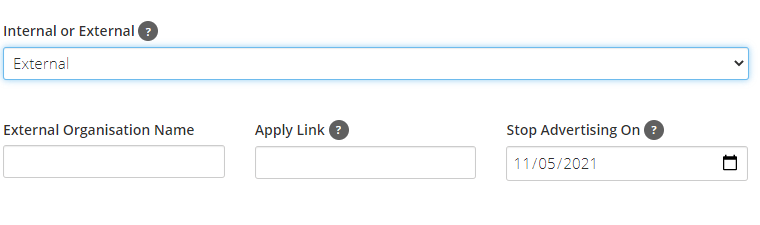
When adding a quick opportunity (super admins can enable quick opportunities for their providers from the settings area), you have an extra option to mark the opportunity as external. When selected the user enters what external organisation is responsible for the opportunity, the web address for more information/application, and the advertising end date. 
 
When a volunteer views the opportunity they are informed its an external opportunity, and are redirected via an apply button to the organisations own website.

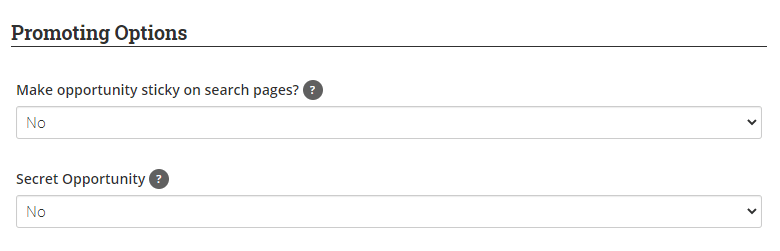
Secret Opportunities

These are not clandestine opportunities for secret agents, but a way to hide open opportunities from search results and opportunity suggestions throughout the application.

Volunteers with the exact link will be able to view and join the opportunity as normal, but those without access to the link will not find the opportunity.

In all other regards the opportunity behaves just like a regular opportunity.

Add Volunteer Meetings in Bulk

You can now create and add volunteers to meeting dates directly from the bulk actions on the volunteer search page. So you can add 10 or 20 volunteers to a group meeting very easily.

We’ve also updated the text a little to make it clear that you can enter a zoom/meet link in the location field if your meeting is going to be virtual.

Private Notes for External Volunteers

You can now add private notes to external volunteer profiles. These private notes are not viewable by the administrators of the volunteers home application.

New Volunteer Search Filters

You can find two new filters in the TYPE area for a volunteers disability and special needs status.

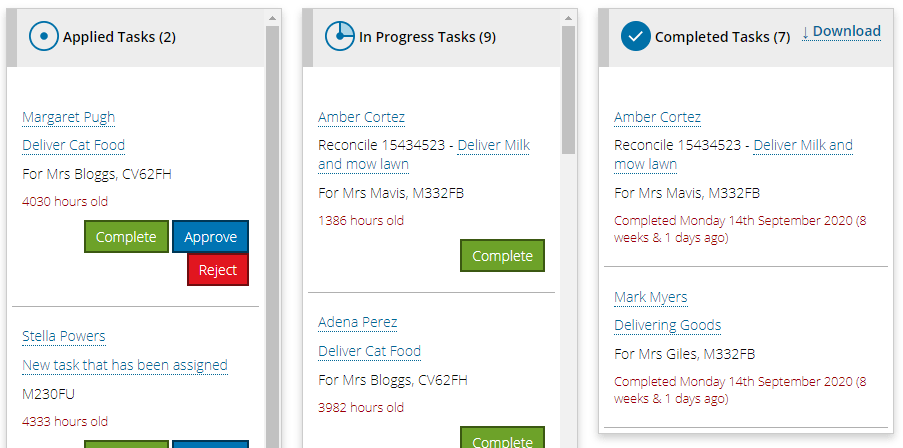
Completed Community Task Report

We are still working on getting some more insightful reporting around community tasks in the next major version.

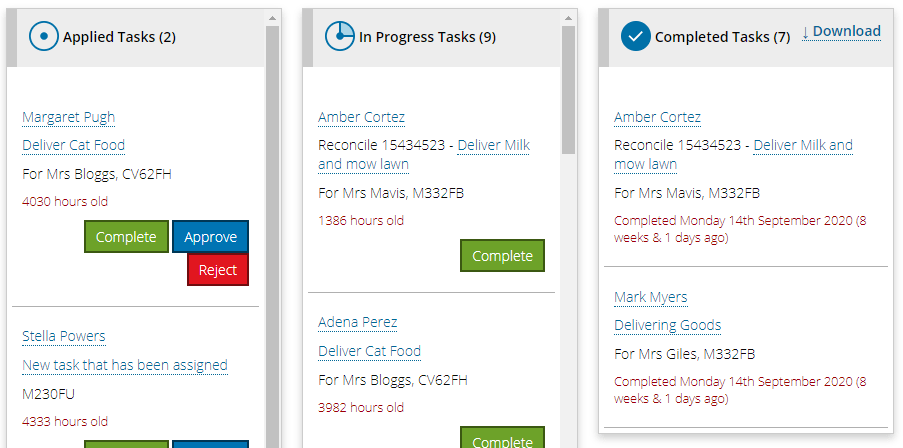
In the meantime, you can download a complete list of all completed tasks from the community task page. It includes dates, times and which volunteer that completed the task.

You’ll find the download button at the top of the completed task column.

Healthcheck Status Included in Member Downloads

This is an update for the accredit module in TeamKinetic (interested in managing events and printing access badges straight from TeamKinetic? Get in touch).

When you export event member details the export now includes their latest healthcheck status.

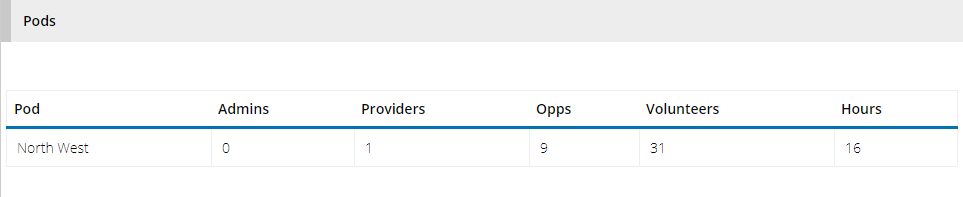
POD Report

We’ve included a small POD report in the main reporting area which tells you how many admins, providers, opportunities, volunteers, and hours are in each pod.

We will be adding some more detail in the next major release.

Public Roadmap Accepting Votes

You can now access our public roadmap straight from the help menu, read up on what features might be heading down the road and also importantly, vote on the features you would most like to see.

We will be keeping an eye on the votes and endeavouring to push the most popular features to the front of the release queue, so get voting.

New Help Videos

We have added a tonne of new help videos to the Tutorial Videos section in the your help menu.

They are super short informative videos about specific features or processes and well worth a look.

Increased Maximum Image Size

The maximum width of images for provider and event profiles is now 1900 pixels, so the quality of the image on large displays is now a lot better.

We have also adjusted some of the image processing to improve the size/quality performance.

Facebook Live 

Please join us for our Facebook Live on Friday 13th at 2pm on our Facebook TeamKinetic Customer Group to see these new updates in action. Make sure you are a member of this group before 2pm tomorrow to make sure you can watch the live! Just click here to go to the group. 

Product Steering Group: 16/09/2020

That was our first ever product steering meeting and we would like to thank everyone for their feedback and comments, we think it went pretty well! 

This group was a chance for us to relay some ideas and details about possible updates to our system and get a feel for how our users felt about these updates. It was also a chance for us to listen to your ideas on future features which could be added to the system or at least were worth further exploration. 

So with that, let’s show you what was discussed at the product steering group 16/09/2020. 

Roadmap

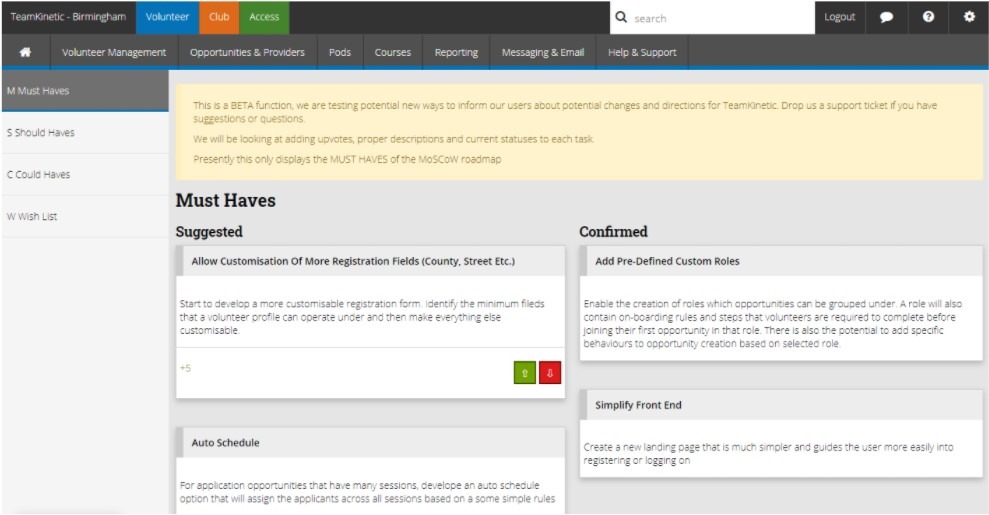
The roadmap is what we are using to help with the potential new features being added to upcoming updates. We are developing this through the MoSCoW Project. These are the Must haves, Should haves, Could haves and Wish list. The MoSCoW project will allow a way of ordering potential features based on their feasibility, price, etc… This section is live on your systems and will be under the help menu and under the new entry ‘roadmap’.

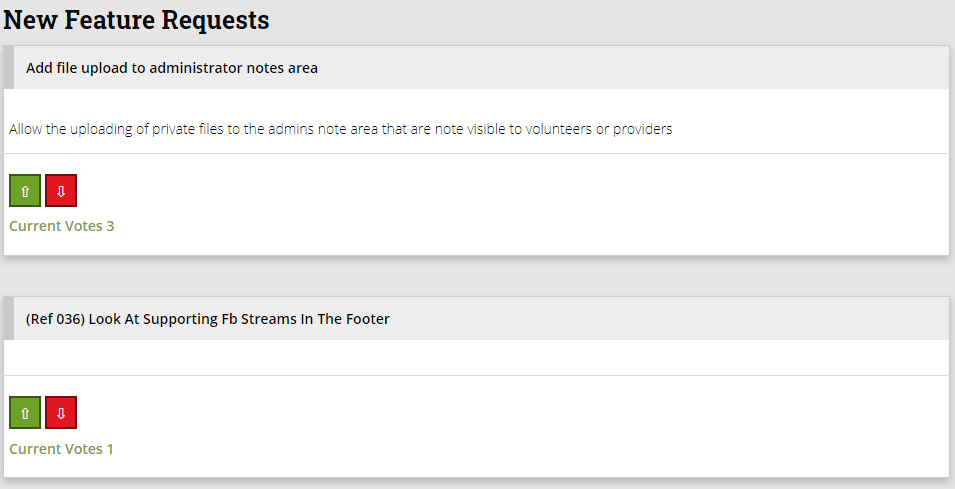
The ‘must have’ section will be everything we plan on fixing for the next update. On each potential new feature will be a voting system so you can vote on which you definitely want and which you don’t. This will then bump up certain features which are popular. 

If you have any new features you want and we haven’t mentioned, you can open a support ticket and choose ‘new feature’, this will then be added to a certain part on the MoSCoW project. 

Rolf will be adding a comments section soon, so let us know what you like, what you hate and everything in between.

Watch the video below to see how to view the Roadmap and how to add a new feature. 

Community Tasks – Where next?

Community tasks were set up in response to the COVID-19 crisis. They are small tasks designed to provide community support to people who are unable to leave their homes. To test out the community tasks you need to enable from the super admin settings and you can try out creating tasks without publishing them to your volunteers. Watch the video below to see how to turn on community tasks. 

At the moment the way the community tasks work is they are separate from the opportunities volunteer page. We kept these separate at the beginning of this update to ensure volunteers wanting to help with COVID-19 tasks would just go straight to this site. However, we are now interested in knowing how we might integrate the two sites and features more effectively.   

We think Community Tasks are useful beyond COVID-19 but we open to where they will ‘live’ with in the application moving forwards. If you have any comments on this please get in touch with us or fill in the questionnaire we have sent our on the subject and let us know what you think.

Native Mobile Development

Our native mobile development unfortunately all but stopped during the height of COVID-19 because our developers have been furloughed and unable to work.

This would have been a new version of our Apps for iOS and Android with all features you would expect added in and some neat new customisation available.  We are committed to continuing to develop our apps but coronavirus forced us to make some difficult choices, one of which was to build our Community Task app using Progressive Web App technology. 

Using Progressive Web App (PWA) for the community tasks site was fast to build and was easy to roll out and it had almost all the same features of a native app however it just uses the web browser on your phone  instead of downloading the app store. 

There are pros and cons of both app types of app and we are keen to know what you think about using PWA more in the future!

Native Mobile Development

Pros – Available on both IOS and Andriod, gives the best overall experience and integration with the mobile device. 

Cons – Slow and significantly increases the lag for new feature incorporation.

Progressive Web App

Pros – Fast to build and implement.

Cons – Do not have access to all mobile capabilities, especially on iOS.

Focus – UI/UX

UI – User Interface 

UX – User Experience

Whilst looking at our set guidelines and rules for our interface we wanted to make sure it enabled a good workflow for our users and let them focus on the tasks they were doing, so we named it ‘focus’. 

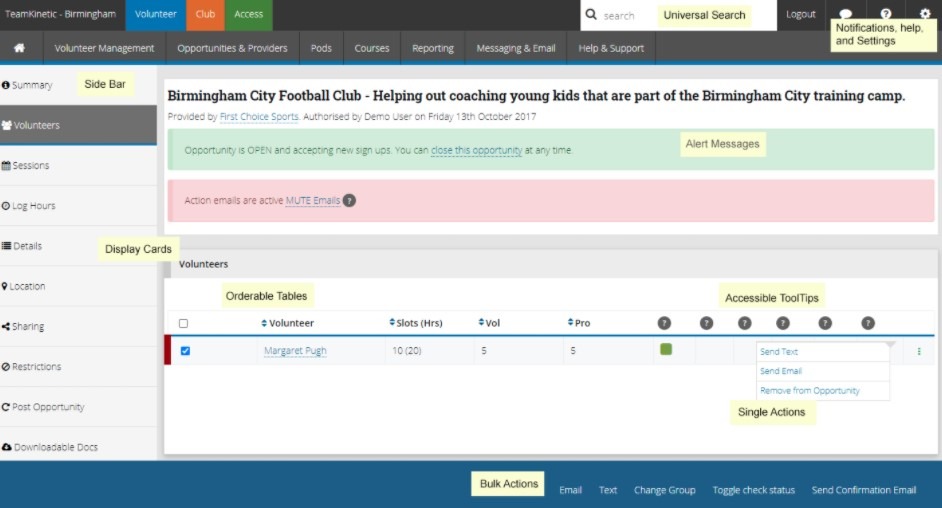
Over the last 12 months we have been integrating this look across all the pages on the system. The new side bar gives access to extra features on that page and there is no restriction on sizing. Searching is much easier as the universal search bar is now at the top of every page along with the notification settings and help bar. The new alert messages will either be in red or green depending on urgency and the ones in yellow will be for standard messages. 

Please let us know once you notice these changes, what works well and what doesn’t. We are heading down the root of changing all pages to look like the one above, so if you see anything that can be changed, set up a support ticket to explain. 

Thank You!

We hope all of our clients enjoyed the Product Steering Group, there were some great comments and ideas being said which will enable us to create a clearer path for the future. 

So we can get some extra feedback from our Product Steering Group, please fill in the survey we have created. 

We can’t wait to hear more from you. And until next time…

Why You Should Be Customising Your Volunteer Registration Emails

Did you know that you can customise your TeamKinetic system’s volunteer registration emails? Changing the first email your volunteers receive can be a big step in improving your volunteer management. 

How do I change the registration email?

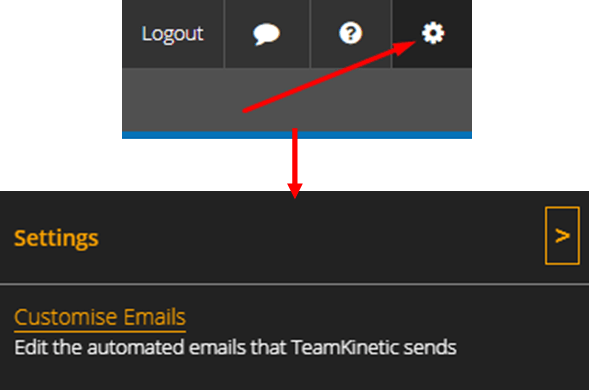
Go to the Admin Settings Cog → Customise Emails

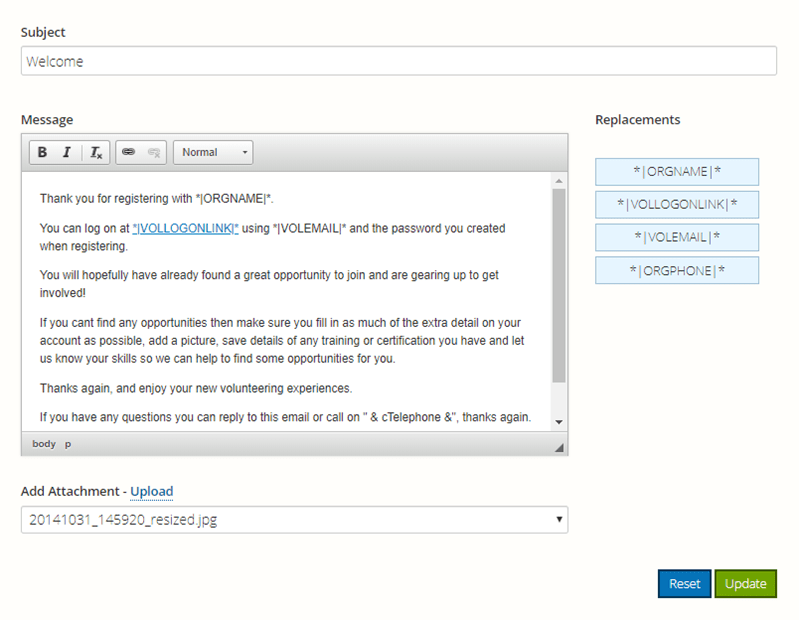
Find the ‘volunteer registration’ email and click ‘Edit’. 

You can now edit the default text and style it accordingly. When you click on the blue buttons on the right, a placeholder will be added to your text, and when sent, that placeholder will be replaced with the appropriate text; in this case you can use placeholders for your organisation name, organisation contact number, the volunteers email address, and a login link for the volunteer to follow.

What changes should I make?

  • That first email after registration should layout the next steps you want the volunteer to take. For example, this might be to upload a photo and a piece of ID. You could also direct them to the Resources & Help, where all the documents in your document hub are available, if your volunteers require extra information after registering.


You can alter options regarding volunteer photo/ID uploads via the Admin Settings Cog → TeamKinetic Options → Everything Else.

Volunteers can easily access these things through the left-hand-side menu on their dashboard.

They should go to the underlined tabs to upload a picture, ID, and view the document hub (in that order).


  • You can also add links to various areas of the system for easy access and attach files to the email. For example, you could share the link to take them straight to a search for COVID-19 related opportunities. This will help highlight ways volunteers can help their local communities.
    You can find your shareable link to all COVID-19 opportunities on your admin homepage: 
  • If necessary, make sure to tell new volunteer about inductions, DBS and ID checks when they first join to allow them to get started with you as soon as possible.  As an admin, you can keep track of DBS checks via Volunteer Management → Criminal Checks as well as visiting a volunteer’s profile directly via Volunteer Management → Search Volunteers. 

  • You could also customise the ‘joined opp’ email that is sent when a volunteer joins their first opportunity to let them know what you want them to do next. Perhaps explaining the keywords used on the site, such as sessions, the different opportunity types, and how to log hours. 

What else can I do to get volunteers started?

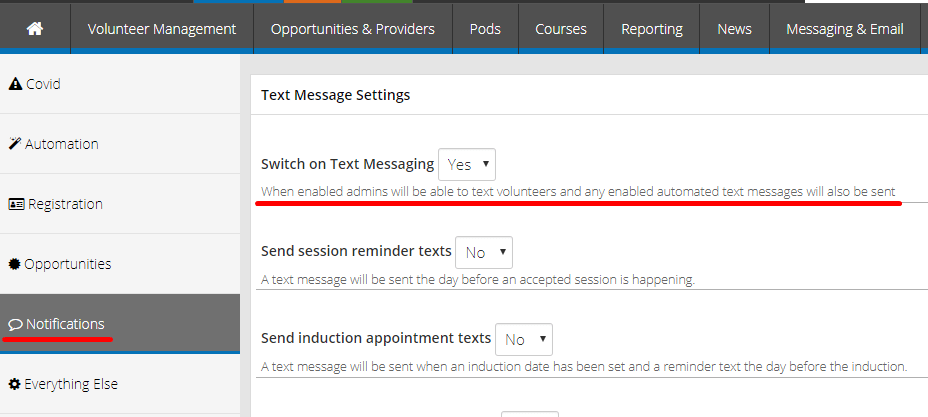
  • Switching on text messages is another great way to keep in contact with your volunteers. Text messaging can be switched on by going to the Admin Settings Cog → TeamKinetic Options → Notifications → Switch on Text Messaging. 
  • Building your Document Hub can also be highly beneficial to your volunteers. You can add documents, links and text for your volunteers and providers, e.g. a code of conduct or training manual for new volunteers.
    To access the document hub, go to the Admin Settings Cog → Document Hub 

Want more TeamKinetic tips?

Subscribe to our blog for more like this as well as other pieces relevant to volunteering and volunteer management. You can also follow us on Twitter, Facebook, and LinkedIn.

You can visit our YouTube channel to find further help navigating your system or call us on 0161 914 5757, we’re always happy to help you out!

Page 6 of 10

Powered by WordPress & Theme by Anders Norén